 Xur
XurMove forward.
Keep a way back.
The Xur application and the Bazzite operating system have separate update lifecycles.
Choose your channel
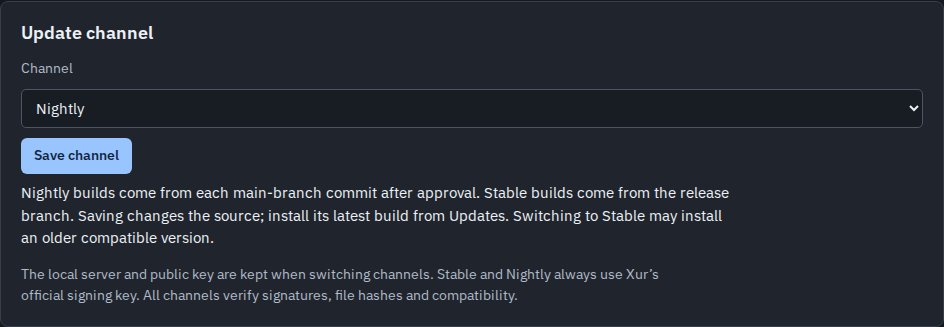
Under Settings → Update channel, choose Stable or Nightly. Stable follows the release branch and requires maintainer approval. Nightly publishes automatically from the main branch after required checks pass; its name does not mean a scheduled daily build. Installer media is built only when requested and published separately from app updates.
You can switch channels in either direction. Switching changes the source for the next update check; it does not immediately replace the running app. Downloads remain signed and compatibility checks still apply. If a channel has no published release yet, keep the current installation and check GitHub Releases.
Update the app and OS
Update All checks both. A Xur app update briefly reconnects the web manager while independently running workloads remain in place. An OS update stages Bazzite, the kernel, drivers and desktop components, then needs a reboot.
Look for the pending-reboot banner and the staged deployment on Updates. An available update is not necessarily downloaded or staged. Reboot interrupts running workloads.
Back up and recover
Download a configuration backup from Settings before major changes. Back up home directories, games and models separately: the configuration backup does not include those files.
Application rollback selects the previous app bundle. OS rollback queues the previous deployment for reboot. Neither action restores personal files, and older app versions must still support the saved configuration.
Test a local build
Choose Settings → Update channel → Local build testing, then enter the local update server and its Ed25519 signing public key. Never share a private key. Signature checks remain enabled; Stable and Nightly always use Xur’s official key. Select either to return to official updates.
See application update documentation for the build and signing process.